Page 1: Shopping List App
Unit 2, Lab 2, Page 1
On this page, you will create a shopping list app.
Some programming languages use the word array instead of list.
Many computer applications—contact lists, playlists, calendars, reminders—involve manipulating lists of information using tools that search, sort, or change the items on the list. You’ve worked with lists before as you customized the gossip project.
Assignment This project contains button costumes for the sprites that the user will click to control the items on their shopping list.
Click for a video showing how this might look.
You learned how to initialize (create and set) a global variable on Unit 2 Lab 1 Page 4: Keeping Score with Global Variables.
Initialize a shopping list variable to store the information.
Notice that a global variable called shopping list has already been created for you.
The shopping list variable has already been set to be a list. If it gets set to a value and not a list (the display will look different if this happens), you will need to reset it to be an empty list (a list with nothing in it). You will need a
 block.
Use its left arrow to get rid of the input slot so that it looks like this:
 . That way, you will have an empty list rather than a list with one empty item.
Adding Items to a List
An element is another name for an item in a list. (If the same value is in the list twice, that counts as two different elements.) Each element has a unique index (position) in the list.
You can use the  or
or  block to add elements to a list.
Insertputs the new item at the place you specify. The item previously at that position, and all the later items in the list, move up one position.Addputs the item after the last existing item.
Assigning a list to a variable lets you use one name to represent all the elements of a list as a unit.
You’ve seen the ask and answer blocks on Unit 2 Lab 1 Page 2: Checking the Player’s Guess.
You’ve worked with multiple sprites on Unit 1 Lab 2 Page 2: Making Programs Talk.
Write a script for the “Add Item” button sprite so that when that sprite is clicked, it will
askthe user for a new item, and then put the user’sanswerin the grocery list.
Test your “Add Item” button several times and fix any problems.
Removing Items from a List
Write a script for the “Clear List” button sprite that asks the user if they’re sure and then sets shopping list back to an empty list.
Test your “Clear List” button and fix it if needed.
You can also remove items from a list using  . The
. The delete block takes an item number and a list as input and it removes the item at that position from the list.
Write a script for the “Delete Item” button sprite so that when that sprite is clicked, it will ask the user to “Enter the number of the grocery item you wish to delete,” and then remove the item with that number from the grocery list.
Test your “Delete Item” button.
Take It Further…
This shopping list app can be extended in many ways. Try to add the following features, and more if you think of them!
To the “add item’ button, make it so that it checks to see if the item is already present on the list before adding it. You might find the
 block to be useful here. Figure out what it does (hint: you can right click the block and click “help” to see examples), and then use it in your code.
To the “clear list” button, have it ask the user if they are sure they want to clear the list before proceeding. For this one, see what happens if you put a list in the text field of the ask block. It’s very useful! Like this:

To the “delete item” button, have it give the user the option of deleting the item using the number or the name. Then write code to have it handle either choice.
To the “delete item” button, have it check to see if multiple list items contain requested item as a substring, display all matches and ask user to choose (can also choose none). To work with searching for substrings, try importing the “Strings, Multi-line input” library and using

To see how to import libraries, click here
Click on the file icon on the top left
 .
.Click on “Libraries…”
Choose the library that you want to load in.
Add a new sprite that will use
 to write the list to the screen instead of using the native list display.
See the following video to see an example of each of these extensions
| Snap! | AP pseudocode |
|---|---|
 |
[Señora, Ms. C, my cat, Hannah, Jake] |
 |
shoppingList ← [] or ![shoppingList ← []](/bjc/external/unit-2/shoppinglist-empty-list-assignment-blocktran.png) |
 |
shoppingList ← [apples, bread, carrots, rice, pasta] or ![shoppingList ← [apples, bread, carrots, rice, pasta]](/bjc/external/unit-2/shoppinglist-full-list-assignment-blocktran.png) |
 |
INSERT(shoppingList, 2, "tomatoes") or  |
 |
APPEND(shoppingList, "tomatoes") or  |
 |
REMOVE(shoppingList, 2) or  |
 |
myFavoriteFood ← shoppingList[3] or ![myFavoriteFood ← shoppingList[3]](/bjc/external/unit-2/assigning-element-to-variable-blocktran.png) |
 |
shoppingList[2] ← yourFavoriteFood or ![shoppingList[2] ← yourFavoriteFood](/bjc/external/unit-2/assigning-variable-to-element-blocktran.png) |
 |
shoppingList[1] ← shoppingList[3] or ![shoppingList[1] ← shoppingList[3]](/bjc/external/unit-2/assigning-element-to-element-blocktran.png) |
In pseudo code items in the list are positioned in the order they appear in the text: “Señora” has index 1, “Ms. C” has index 2, and so on.
The items in a list are values, so you can use item of anywhere you can use any other expression: you can assign a list item to a variable, and you can assign any value to a list item (a number, a string, a sprite, a costume, a script, another list, etc.), as the last three rows of the table above show.
There is, however, one difference between Snap! and AP pesudocode.
When you run this script in Snap!, the second line of code assigns to shopping list 2 the value of shopping list (that is, the same list, not a copy). So, the third line of code modifies both variables:
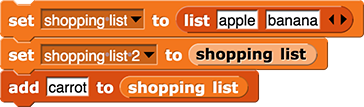
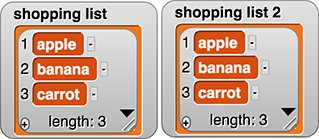
However in the exam’s pseudocode, the statement shoppingList2 ← shoppingList makes a copy of the list. So modifying one of them does not modify the other.
This is an example of how the rules for how to use lists and how they behave can differ depending on the programming language you are using.